Scan both sides of a business card into one contact
Some business cards put the name on the front and the phone number on the back. CardAction's two-sided scan keeps the pair together so you can review the combined contact before saving it.
Start with 3 free scans a day. See plans and feature limits.
Use the two-sided scan mode
Choose the scanner’s two-sided card mode before starting the pair. It keeps the first reading while you turn the card over. Use a steady surface and leave enough room to flip the card without confusing it with another one.
- Capture the front of the business card.
- Wait for the prompt to turn it over.
- Flip the same card and capture the back.
- Review the combined contact before saving or sending it anywhere.
Avoid scanning the front as a finished contact and then scanning the back as a new card. The two-sided workflow is what tells the app that both readings belong together.
Review the combined contact
Check the person’s name, company, phone numbers and email addresses against both faces of the card. A front can be mostly branding while the useful contact text is on the reverse. A bilingual card can repeat the same information in another language.
The combined reading still needs your judgment. If the card lists an office number and a mobile number, make sure the one you intend to call or use in WhatsApp is correct. Check whether an address belongs to the company or to a particular branch before using it for a visit.
For example, a consultant’s front might show a name and company while the back lists a direct number and two email addresses. Review the additional fields so you keep the details you need without creating another entry for the same person.
Handle difficult card layouts
Glossy cards can reflect overhead lighting over a whole line of text. Change the angle or move the light source before retaking the image. For small print, keep the phone steady and let the camera focus before capture.
A logo-only front is valid in the two-sided flow. If the combined result still lacks usable contact information, inspect the back and try again. Handwritten notes, decorative fonts and unusual layouts can need manual correction.
Keep the pair together when working through a stack. Finish one card’s front and back before moving to the next. If you accidentally capture the reverse of a different card, restart the pair; a plausible-looking name and phone number can still belong to different people.
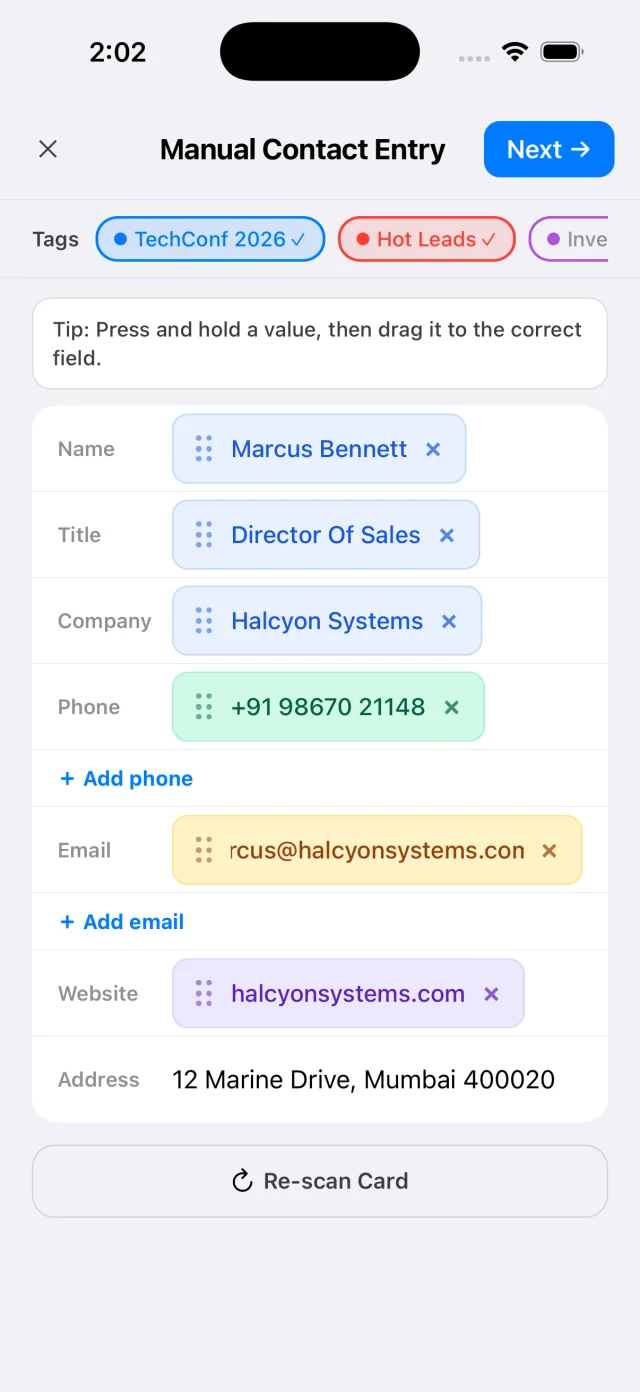
The screenshot above shows the review editor with example data. Use it to recognize the fields you will check, rather than as a guide to where the two-sided camera control appears in a particular app version.
Save and export one contact
Once the combined entry is correct, save it to CardAction’s library and add any relevant event tag or note. You can then use the contact actions or save a copy to your phone’s address book.
For a spreadsheet, follow the CSV-to-Excel workflow. Check how the exported additional phone and email fields will be handled by your spreadsheet or CRM. If you use Google Sheets or a webhook, test the mapped fields with a two-sided card before relying on the setup for a full event.
Offline capture keeps the scan on the device. Online exports wait for a working connection. The offline guide explains how to check delivery after reconnecting.
Common questions
Does scanning the back create another contact?
In the two-sided scan flow, CardAction keeps the front reading and merges the back into one contact for review. Scanning each side separately in the ordinary single-sided flow can create separate entries.
Can the front contain only a logo?
Yes. The two-sided flow allows a front without contact details and checks the combined reading after you capture the back. Review the final result before saving.
What if the back is blurry or unreadable?
Improve the light and retake the back when prompted, or restart the pair if needed. Check the fields after the scan and edit missing or incorrect details before saving.
Does two-sided OCR work offline?
Card text is recognized on the device. You can capture and review locally without internet; sending the resulting contact to Google Sheets or a webhook needs a connection.