A business card scanner for iPhone, from capture to follow-up
Use CardAction on iPhone to turn a printed business card into an editable contact. Check the result, save it to your phone when you choose and use the contact's email or WhatsApp action to continue the conversation.
Start with 3 free scans a day. See plans and feature limits.
Set up the scanner
Download CardAction from the App Store and open it before you need to use it at an event. Allow camera access so the app can read business cards. Local scanning does not require a CardAction account.
Start with a card whose details you can check easily. The free plan allows 3 scans per day. If you expect to scan a stack after a conference, review the plans and feature limits and try the batch workflow before the day arrives.
CardAction is also available on Android, but the steps here focus on an iPhone. Store availability and device compatibility are shown in the App Store listing.
Scan and correct the details
- Put the card on a plain surface in good light.
- Hold the iPhone so the whole card is visible, and let the camera focus.
- Capture the card, then check the extracted name, company, email and phone number.
- Correct any field that does not match the printed card.
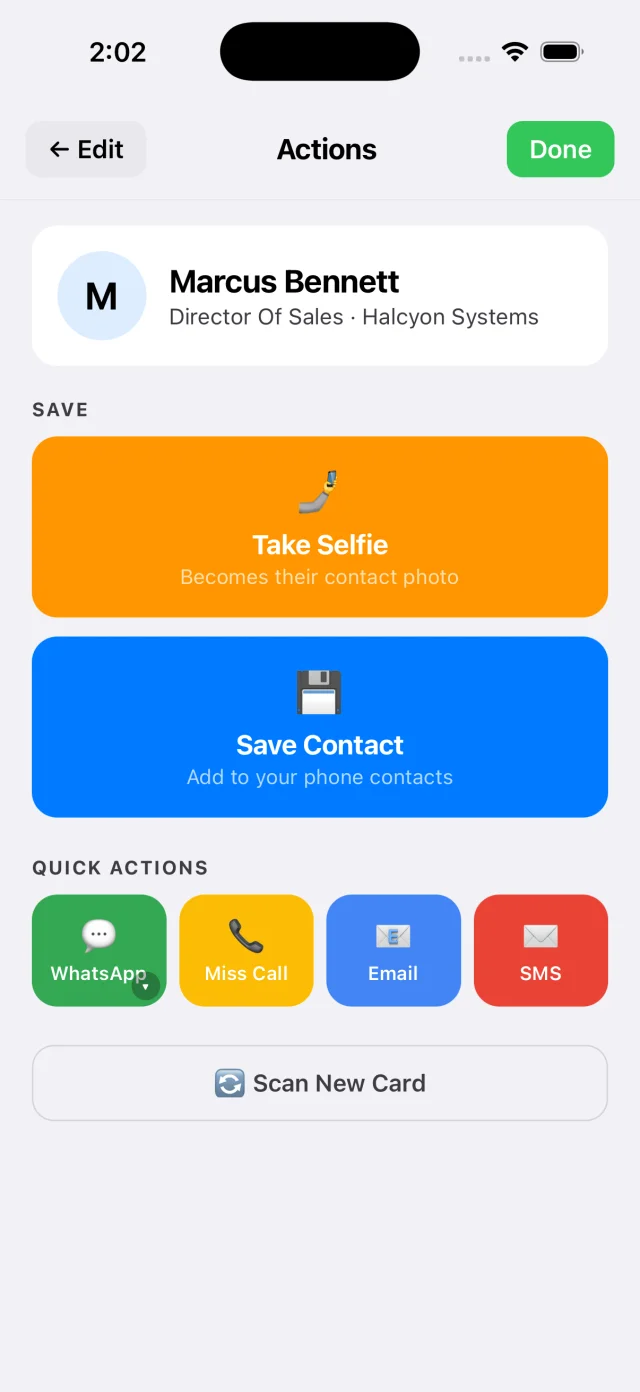
- Continue to the actions screen when the contact is ready.
If the text is on both faces, use two-sided scanning. If glare hides a number, retake the image at another angle. A clear photo reduces the corrections you need to make, but a review is still worthwhile before a message goes to the wrong address.
Check international phone numbers carefully. A locally printed number may need its country code before you contact someone from another country or open WhatsApp.
Save a copy to iPhone Contacts
Choose Save Contact after reviewing the scan. CardAction will ask for the Contacts access it needs if you have not granted it. The saved address-book entry is a separate copy from the contact in CardAction’s library.
If saving does not work, check that the app has Contacts permission in your iPhone settings, then try again. Avoid repeatedly saving the same entry while troubleshooting; check the address book for an existing copy first.
Whether that copy appears on another Apple device depends on the account and sync settings used by iPhone Contacts. CardAction’s local library should not be treated as an iCloud contact backup. When changing phones, plan an export and check the imported copy before removing the old local data.
Follow up or export
Use the email, call, SMS or WhatsApp action that suits the conversation. Read a prepared message before sending it. For example, if you promised a meeting link, include that link and a reference to where you met instead of sending a general introduction.
WhatsApp needs an internet connection and a number registered with that service. CardAction helps open the follow-up flow; you still review the recipient and complete the send. Calling and SMS depend on your phone service.
For a contact list you can work on at your desk, export CSV for Excel. If you want contact rows delivered to a shared spreadsheet, connect Google Sheets and test the destination. You can also configure a webhook for an external automation, with the receiving workflow set up separately.
Scanning remains available when the venue’s connection drops. Keep the contact and note locally, then check online exports after reconnecting using the offline workflow.
Common questions
Is CardAction free on iPhone?
The free plan includes 3 scans a day without a CardAction account. Some Pro features have a limited free allowance. Check the current pricing and feature limits before a large scanning session.
Can I scan a business card directly into iPhone Contacts?
Scan and review the card in CardAction, then choose Save Contact and grant Contacts access when requested. Automatic saving is a separate option in Settings and is subject to the applicable feature allowance.
Does the scanner need internet on iPhone?
Text recognition and the local contact library work offline. Google Sheets, webhooks and online message delivery need internet.
Will contacts sync through iCloud?
That depends on your iPhone's Contacts account and sync settings after you save a copy there. CardAction's own local library is separate; do not assume that scanning a card automatically creates an iCloud copy.