Scan business cards to Excel
Send scanned business cards from CardAction to Google Sheets, then download the sheet as a CSV to open in Excel. You can review the rows with your team before exporting. If you prefer a file straight from your phone, CardAction also has a direct CSV export.
Start with 3 free scans a day. See plans and feature limits.
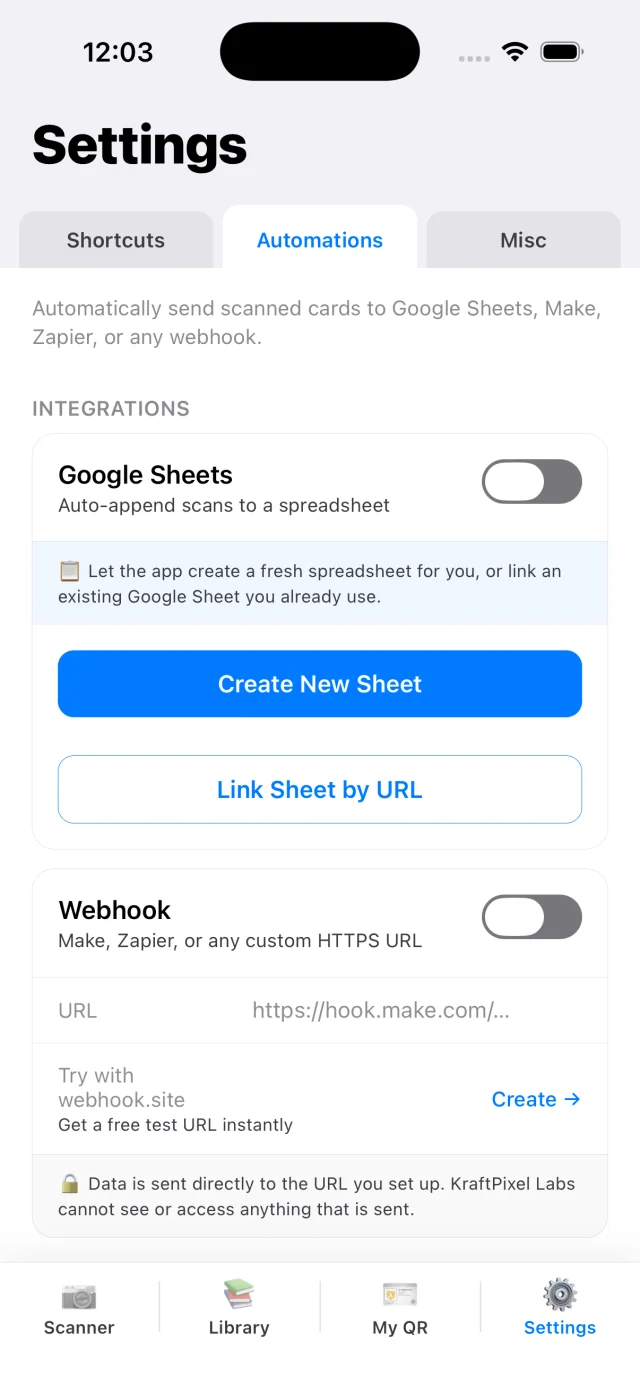
First route: send cards to Google Sheets, then download CSV
Use this route when you want a spreadsheet you can review or share before opening it in Excel. CardAction sends contact rows to Google Sheets; you download the CSV from Google Sheets when the list is ready.
- In CardAction, open Settings, choose Automations and find Google Sheets.
- Sign in with Google. Choose Create New Sheet, or Link Sheet by URL for a spreadsheet your account and CardAction can access. Select the destination tab and check the field mapping.
- Scan a business card, review the details and send the contact using your configured automatic or manual export flow.
- Open the connected Google Sheet and confirm the name, email and phone number appear under the right headers. Repeat for the other cards you want in the list.
- On your computer, open that spreadsheet in Google Sheets and select the tab containing the contact rows. Choose File, Download, then Comma-separated values (.csv). CSV downloads contain one tab at a time.
- Import the downloaded CSV into Excel. Choose a comma delimiter and import phone columns as text so country codes and leading zeros stay intact.
Google also offers Microsoft Excel (.xlsx) under File, Download if you want a workbook directly. See Google’s instructions for downloading a spreadsheet in another format.
For an event list, copy the rows you intend to share into a separate tab and download that tab. Check its contents before exporting; a filter on the working sheet should not be treated as a selection of rows for the CSV.
Sending contacts to Google Sheets needs internet and an available export allowance. Check the current plan limits, and follow the Google Sheets setup guide if you need help connecting the destination or finding a missing row. The export appends rows, so check for duplicates before sending the same contact again.
Scan and review your cards
Start with a few cards so you can check the result in Excel before processing a large pile. Put each card on a plain surface in good light. Keep the whole card in the frame and avoid reflections over the email address or phone number.
After a scan, check the person’s name, company and contact details. Small print and unusual layouts can need corrections. Pay particular attention to characters such as a lowercase “l” and the number “1” in email addresses. If the card has information on the back, use both-side scanning to capture it into the same contact.
For a stack collected at a conference, batch scanning lets you continue through the cards in one session. Check the current plan limits before relying on it for an event. Review the saved contacts before exporting; unverified entries are excluded from the Settings export.
Alternative: export CSV directly from CardAction
If you want a file from the phone without connecting Google Sheets, use CardAction’s built-in CSV export. This exports the saved, verified contact library.
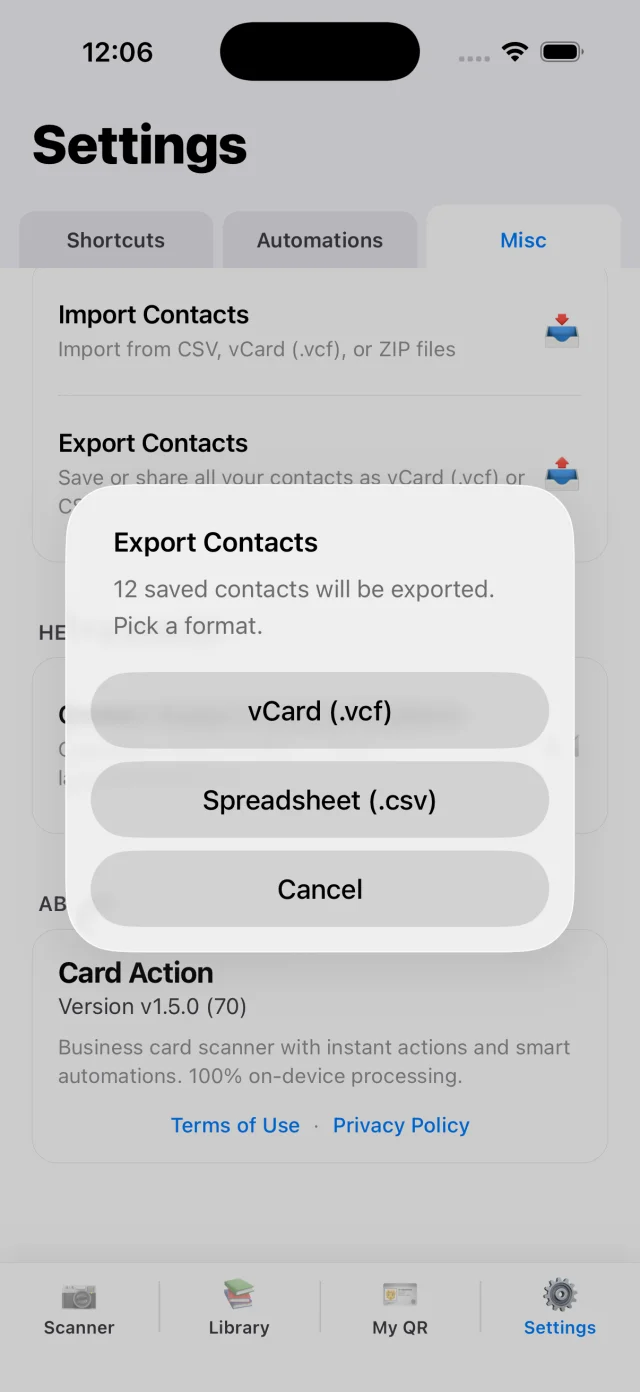
- Open CardAction’s Settings and go to the Misc tab.
- Choose Export Contacts, then Spreadsheet (.csv).
- Use your phone’s share menu to save the file or send it to a device with Excel.
- In Excel on desktop, import the CSV using its text/CSV import option. Confirm the delimiter is a comma and check the preview before loading it.
- Save a copy as an Excel workbook if you want to add filters, formatting or more worksheets.
The CSV contains separate columns for name, phone, email, company and job title, along with other contact fields. Notes and scan dates help you work out why a contact is in the list. Missing information remains blank; scanning cannot supply details that were never printed on the card.
Fix formatting and duplicates
Import phone columns as text. A spreadsheet can otherwise remove a leading zero or treat a number beginning with “+” as a calculation. Keep the original CSV so you can import again if Excel changes a number. If everything appears in one column, choose the comma delimiter during import instead of opening the file by double-clicking it. Microsoft’s guide to preserving leading zeros covers the Excel import settings.
For example, a contact with a UK mobile number needs the country code preserved when the sheet goes to a colleague overseas. Compare that row against the card after importing. Check a name with an accent too; if the characters look wrong, select UTF-8 in the import settings. Microsoft also explains opening UTF-8 CSV files.
Sort or filter by email to spot likely duplicates. Compare the company and phone before removing a row, since two colleagues can share a company address. Additional phone numbers and email addresses are exported in their own columns as lists; separate them into individual columns if your destination requires one value per field.
Prepare a CRM import
Keep a copy of the spreadsheet before editing it for an import. Match the CSV headers to the destination’s fields and check its required columns. A CRM may use email as the duplicate identifier or require a separate record owner.
Import a few test rows first. Confirm the name, country code and company land in the expected fields, then inspect how an existing contact is handled. Once the mapping works, import the remaining rows and check the result count. For the Google Sheets route, export a tab containing only the rows you intend to send. For a direct Settings export, remove unrelated contacts from the CSV before importing.
For automatic CRM delivery, CardAction can send contact data to a webhook you configure in Zapier, Make or your own system. That route needs a working receiving automation and field mapping; downloading the scanner alone does not set up the CRM connection.
Common questions
Does CardAction export an Excel XLSX file?
CardAction's direct file export produces CSV. If you send contacts to Google Sheets first, you can download the spreadsheet as CSV or Microsoft Excel (.xlsx) using the sheet's File menu.
Which contact fields are in the CSV?
A CSV downloaded from Google Sheets contains the columns and rows in the selected sheet tab. CardAction's direct CSV export includes name, first and last name, phone numbers, email addresses, company, job title, website, address, note and scan date. Fields that were not captured stay empty.
Can I send business cards to a CRM?
You can import the CSV into a CRM that accepts it, mapping the columns to that CRM's fields. For automatic delivery, configure a CardAction webhook and an automation that creates or updates the CRM contact.
Is the export limited to an event folder?
In Google Sheets, prepare a separate tab containing the contacts you want to export, then download that tab as CSV. CardAction's direct Settings export creates a file of all saved, verified contacts; review that file and remove unrelated rows before sharing it.