Trade show lead capture that keeps the conversation attached
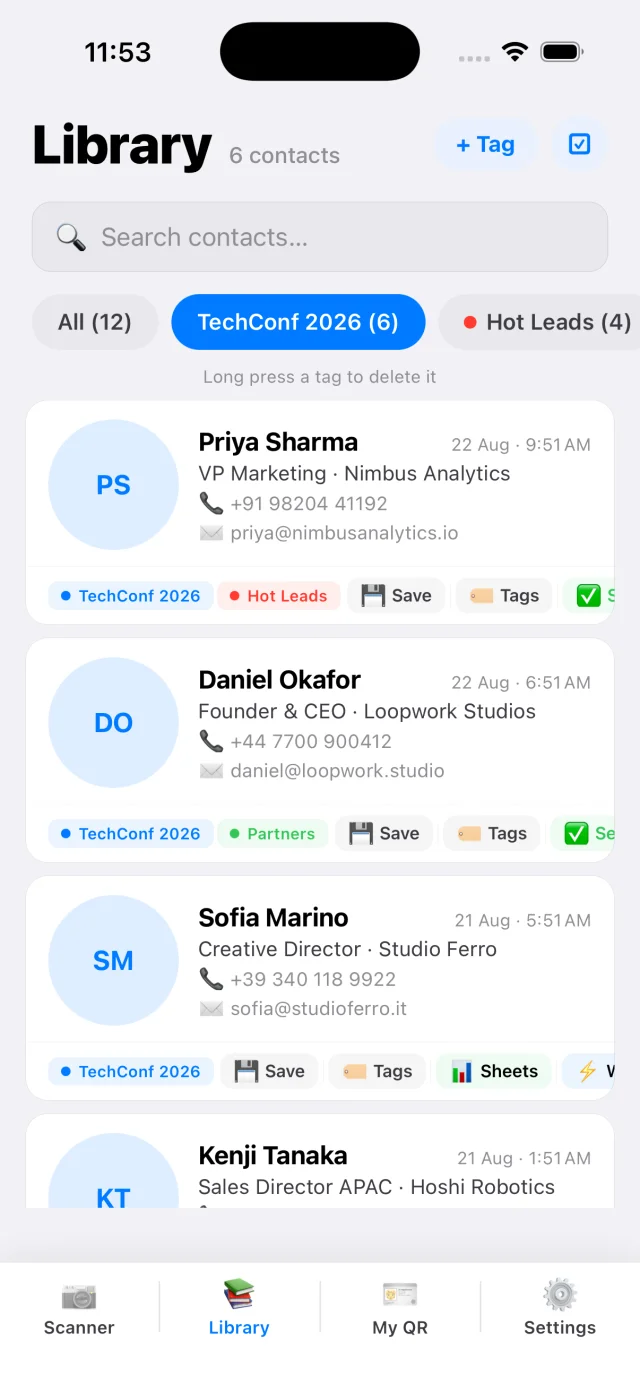
Scan the business card while the conversation is fresh, tag it with the event and write down the next step. CardAction keeps the contact on your phone and gives you export options when your team is ready to follow up.
Start with 3 free scans a day. See plans and feature limits.
Prepare your event workflow
A pile of scanned names is hard to use when nobody remembers the conversation. Before the show, choose one event tag and decide what a useful note should contain. A next step such as “Send the distributor price list on Monday” is more useful than a general label such as “Interested.”
To record that note in CardAction, enable Custom Note under Settings, Automations. This setting requires Pro and is off by default. Once enabled, the Verify & Edit step requires a note before you can finish each scan. If you are using the free plan, keep the conversation context in your team’s follow-up sheet instead.
Scan a few cards on each phone that will be used at the stand. Check names, international phone numbers and email addresses. Try a double-sided card and test offline capture. Review the plan limits so your expected volume fits the setup.
If colleagues need a running list, connect Google Sheets before the event and send a test contact from every phone. Use the same column layout and confirm everyone can access the destination. Each phone has its own local library; sending rows to a common sheet does not merge those libraries.
Capture the conversation
- Ask for the person’s business card and explain how you intend to follow up.
- Scan it, checking the phone number and email before saving.
- Select the event tag so you can find the contact later.
- If Custom Note is enabled, fill it in during Verify & Edit before continuing. Then finish the contact; on the free plan, record the next action in your separate follow-up list.
- Check the export status if you are sending the contact to a shared destination.
For example, a visitor asking about a demo needs a different response from someone looking for a distribution agreement. Record that difference in the note. Keep notes factual and relevant to the conversation.
When several cards arrive at once, keep them in order and scan the stack during a quieter moment. Batch scanning helps with capture, but reviewing the details still matters. Hold on to the paper cards until you have checked the contacts and any exports.
Follow up with context
Open the saved contact and use the WhatsApp or email action for the channel the person agreed to use. CardAction can help prepare a message from your template; read it before sending so the wording fits the conversation.
A follow-up might say: “We spoke at your stand this afternoon about the distributor programme. May I send the product sheet we discussed?” Change it to match what was actually agreed. Check the country code before opening WhatsApp, and remember that a printed phone number may not be registered with that service.
If you are offline, keep the contact and note locally and send the message later. See the offline guide for the difference between scanning a card and delivering an online message.
Hand contacts to your team
For a shared working list, use Google Sheets export. For a file you can review after the event, export CSV for Excel. The Settings CSV export includes all saved, verified contacts, so remove unrelated rows before passing an event list to colleagues.
To send contacts to a CRM automatically, configure a webhook and a receiving automation that maps CardAction’s fields to your CRM. Test how an existing contact is handled. A successful webhook request and a correctly created CRM record are separate things to check.
Before the handover, assign an owner and next action in your team’s sheet or CRM. Check for duplicates from visitors who spoke to more than one colleague. CardAction captures the card; the team still needs to decide who will make the next contact.
Common questions
Does CardAction replace the organizer's badge scanner?
This workflow captures printed business cards. An event badge may use the organizer's private registration system. Do not assume CardAction can access that system or retrieve attendee records from its badge codes.
Can I scan a stack of cards after the show?
CardAction supports batch scanning. Check current plan limits before the event, keep the cards in good light and review the saved details before exporting them.
Can several team members send contacts to one sheet?
Each person can configure a Google Sheets destination their account and CardAction can access. Test access and the column layout on every phone. This is a shared export workflow, not a shared in-app contact database.
Does WhatsApp follow-up happen automatically?
CardAction provides WhatsApp actions and message templates. Check the number and message, then complete the send flow. The recipient needs to use WhatsApp, and delivery needs internet.