Scan business cards to Google Sheets
CardAction can send a scanned contact straight to a connected Google Sheet. Set up the destination once, test the columns with a sample card and check the export status as you scan.
Start with 3 free scans a day. See plans and feature limits.
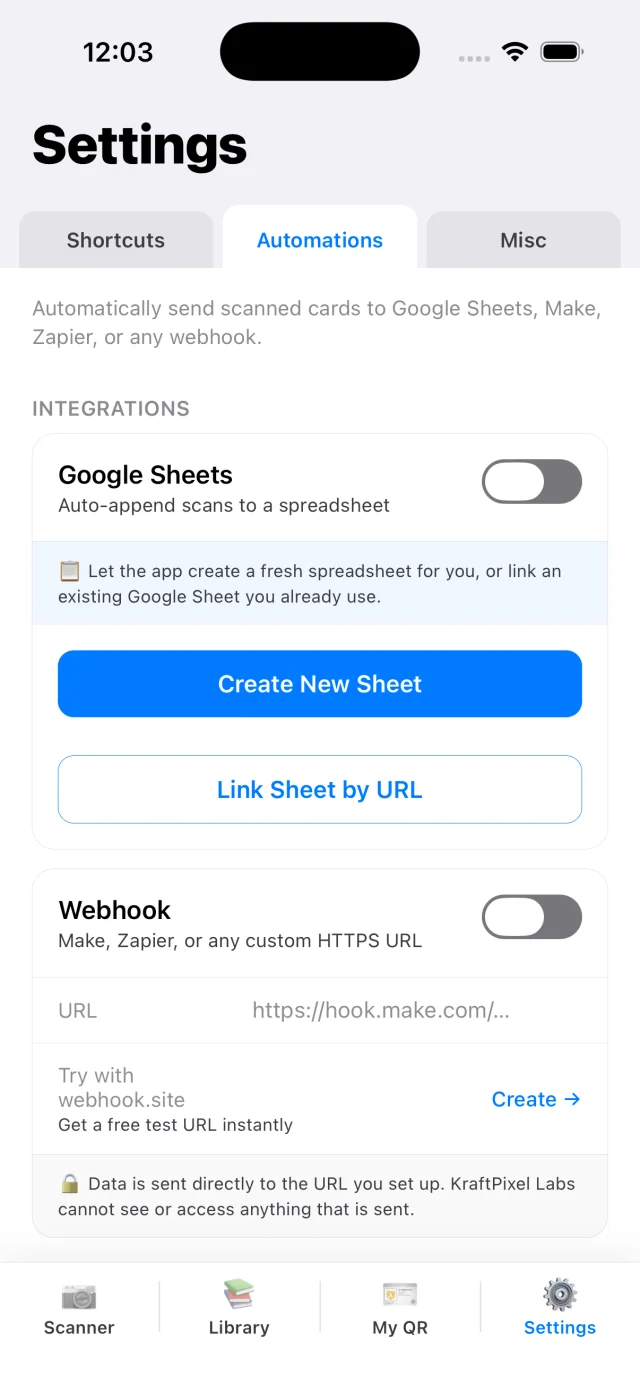
Connect a Google spreadsheet
Open Settings in CardAction, choose Automations and find Google Sheets. Sign in with the Google account you want to use for the export. You can create a new sheet from the app or link an accessible sheet by its URL.
Creating a new sheet is a useful first test because CardAction can create the destination and its headers together. If you link an existing file, confirm that the Google account and the app can access it. CardAction uses the limited drive.file permission; a spreadsheet’s URL alone does not grant access.
Choose the destination tab and review the contact field mapping available in your settings. Keep a separate tab for raw incoming rows if colleagues will be sorting or editing the data. It gives you somewhere to check the original export before making changes for a report or CRM import.
Google Sheets export has a limited allowance on the free plan. Check the current plans before a trade show or another session where you expect many contacts.
Check the first exported row
- Scan a business card with a name, company, phone number and email address.
- Review the fields on the phone and correct anything the scanner misread.
- Confirm that Google Sheets export is enabled and send the contact using your configured automatic or manual flow.
- Open the chosen spreadsheet and check the destination tab.
- Compare each value with its column header and the original business card.
If the company is in the email column, fix the mapping before scanning more cards. Check a phone number with a country code and a name containing an accent. An empty field may simply mean that information was not printed on the card.
The export appends a row. Treat it as delivery to a spreadsheet, and check the effect of sending the same contact again before building a process around repeated exports. The contact library on your phone and the sheet are separate copies.
Build a useful shared list
For an event, add working columns in your sheet for the follow-up owner and next action, keeping them outside the contact columns used by the export. A colleague can then turn an incoming contact into a task without guessing who met the person.
For example, a sales representative can send a contact from the stand, then a colleague can assign the promised demo in the sheet. Give that colleague access using Google Sheets’ sharing controls. Connecting CardAction does not automatically share the file with your team.
If several people will export to the same destination, test one contact from each phone. Check the connected account, tab and column mapping on every device. This setup provides a common spreadsheet; each phone still keeps its own local CardAction library.
Find missing or repeated rows
Start with the contact’s export status in CardAction. Then check that you opened the right spreadsheet and tab. Filters or hidden rows can make a delivered contact appear to be missing.
If the phone was offline, reconnect and open the app so pending sends can be retried. If Google access has expired or the destination is unavailable, resolve that connection before sending again. A feature allowance that has been used up can also prevent the intended export.
Check the sheet before retrying manually. If a row arrived but the response was interrupted, another send can produce a duplicate. Compare email and phone values, and choose a duplicate-handling rule before importing the sheet into another system.
If you only need a file at the end of the day, CSV export for Excel is another route. For automatic CRM delivery, configure CardAction’s webhook with an automation that maps the contact fields to your CRM. Test the receiving record as well as the send status.
Common questions
Do I need Zapier to scan business cards to Google Sheets?
No. CardAction has a direct Google Sheets connection. Webhooks are a separate option for workflows you configure in Zapier, Make or another receiving system.
Can I link any spreadsheet by URL?
The connected Google account must have access, and CardAction's limited Google permission must allow access to the file. Creating a new sheet from CardAction is a straightforward starting point. A pasted URL alone does not grant file access.
Is this two-way synchronization?
CardAction sends contact rows to Google Sheets. Do not rely on edits in a sheet updating the phone's library, or assume that later edits on the phone will replace a previously exported row.
What happens if I scan without internet?
Scanning and local saving still work. Exports need internet and failed sends can be queued for retry. Reconnect, open CardAction and check both the export status and the destination row.