A business card scanner for recruiters who need the context too
Keep the details from a recruiting conversation next to the business card. CardAction lets you scan the contact, add an event tag and note the agreed next step before you move to the next introduction.
Start with 3 free scans a day. See plans and feature limits.
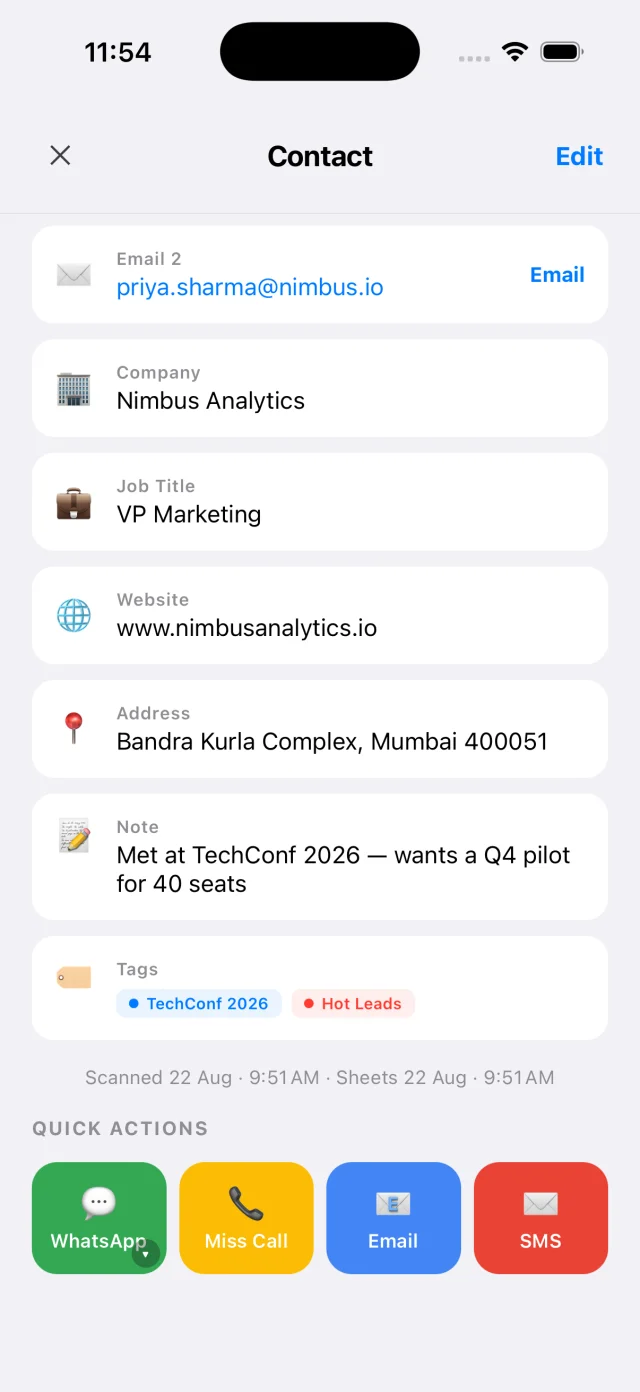
Prepare event tags and notes
Create an event tag before a career fair or industry meetup. Use a name your team will recognize, then decide what belongs in a contact note. An agreed follow-up, role interest or the channel the person prefers can help you resume the conversation.
Enable Custom Note in Settings, Automations if you want to record the note inside CardAction. It requires Pro and is off by default. Once it is on, you must fill in the note in Verify & Edit before completing each scan. On the free plan, keep the next step in your recruiting system or a separate follow-up list.
Keep those notes separate from formal candidate evaluation. CardAction is a contact tool; your organization’s hiring process determines where applications and assessment records belong.
Check your scan allowance and batch limits before the event. If the venue has unreliable Wi-Fi, test offline scanning and decide whether to export later. Scanning locally does not require an ATS connection.
Capture a useful contact
- Ask for the business card and explain the follow-up you have in mind.
- Scan the card and review the name, email and phone number with the printed original.
- Select the event tag.
- If Custom Note is enabled, record what the person told you or agreed to receive in Verify & Edit, then finish the contact. Otherwise, record the next step in your separate follow-up list.
- Check the saved contact before ending the conversation if a detail is unclear.
For example, “Asked for the engineering role description by email” tells you what to send. “Strong candidate” leaves the next action unclear and records an assessment without its context. Use notes to preserve the conversation, and keep evaluation in the appropriate hiring record.
If a card lists a general office address, ask which address the person wants you to use. A scanner can copy the printed text, but it cannot know which contact channel is suitable for a confidential job discussion.
Follow up on the agreed next step
Open the contact and check the note before choosing the email or WhatsApp action. A personal message should name the event and the item you promised to send. Review any saved template so it does not mention an unrelated role or company.
You might write: “We met at the engineering meetup yesterday. You asked for the platform role description; may I send it to this address?” Adapt that to the conversation and the person’s preferred channel. A business card is useful contact information, but it does not tell you whether someone wants every future recruiting message.
If the person needs to apply, point them to your organization’s application process. Keep their scanned card as a contact record under your team’s retention rules, and avoid copying unnecessary personal details into a broadly shared event list.
Prepare an ATS handover
For a file-based handover, export contacts as CSV, inspect the rows and check the ATS’s import requirements. The Settings export includes all saved, verified contacts, so remove unrelated entries. Review the Note column before sharing it.
Map contact information to the appropriate destination fields. Test a few records and inspect how the ATS treats an email address already in its database. Keep a copy of the original export so a mapping error can be corrected without rescanning the cards.
For ongoing delivery, a webhook automation may fit if your ATS or an integration tool can receive and map the contact data. CardAction sends the configured contact payload; you need to build and test the receiving workflow. Notes and event tags should not be assumed to appear in every webhook field set.
See how CardAction handles scanned data before choosing a shared destination. Local storage, a spreadsheet and an ATS each create different copies with their own access and deletion controls.
Common questions
Is CardAction an applicant tracking system?
No. CardAction captures business-card contacts and keeps local notes and tags. Your ATS remains the place for applications, hiring stages and recruiting records that belong in your organization's hiring process.
Does it scan resumes or assess candidates?
This guide covers business-card contact capture. CardAction does not assess a person's suitability for a role or replace your application and evaluation process.
Can I export recruiting contacts to an ATS?
CardAction exports CSV files and can send contact data to a configured webhook. Check whether your ATS accepts the format, map the fields and test a small import. There is no automatic native ATS connection implied by this workflow.
What should I put in a recruiting note?
Record relevant facts and the next step the person agreed to, such as sending a role description. Avoid sensitive personal information or speculative judgments, and follow your organization's record-handling rules.